

The Box panel and the Boxes page
The Box panel shows one thread’s boxes. The Boxes page shows every box you have: your machines, and each thread’s boxes. Both let you open a box’s desktop or terminal, and stop, start or release it.
The Box panel
Open a thread and select the Box tab in its right panel. Each box is a row. The plus at the top right makes a new box for the thread: see making a box.
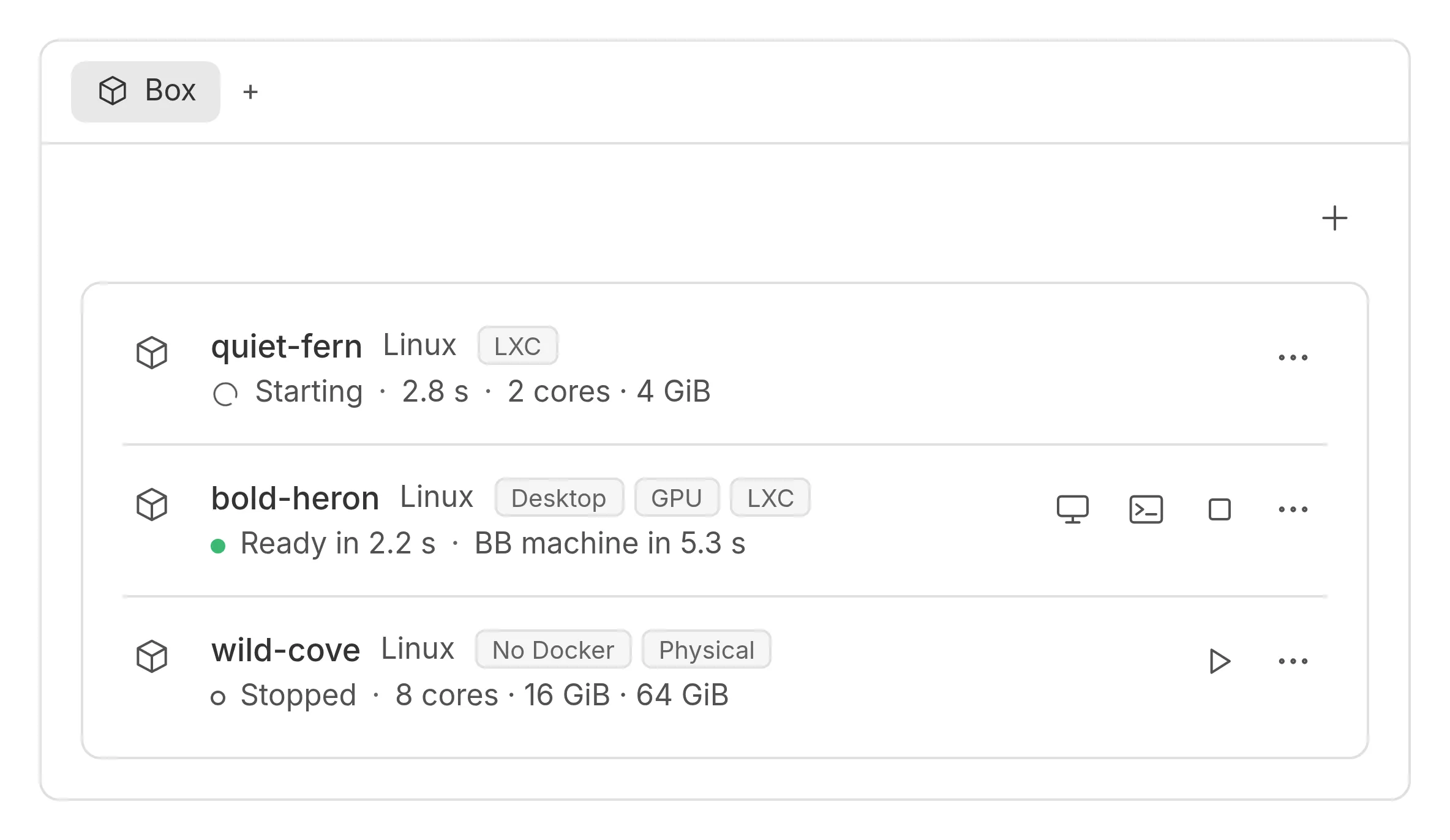
When the thread has no boxes, the panel says ‘No boxes yet’.
When no backend is set up, the panel looks for Docker on your BB machines, the one that runs BB first. Where it finds Docker, select Use Docker on this machine: BB Box turns it on and builds the Linux image, which usually takes 5 to 12 minutes, depending on the machine, and the panel shows how far it is, then says when the image is ready. Desktop images are left off until you first ask for a desktop: then New box’s Desktop says ‘Builds first, usually 4 to 10 min’, Display offers X11 and Wayland, and Build and create builds that desktop’s image, shows how far it is, and makes the box once it is built. If the image does not build, or the box cannot be made once it has, the panel says why, and choosing Desktop again tries again. Once a machine has built an image, the panel gives that machine’s last time as its estimate. Where Docker is there but BB’s user cannot use it, the panel gives the line to fix it, and the line that restarts BB there. A restart ends the turns of threads running there; where the line restarts all of the user’s services, it also restarts a desktop’s audio and notifications, so logging out and in again, or rebooting, is gentler. Then select Check again. Where no machine has Docker, the panel says ‘BB Box is not set up yet’ and links to BB Box’s settings.
What a row tells you
A row starts with the box’s name and its system, such as Linux. A box with a device has its device’s system, iOS or Android, then the device’s model, such as iPhone 18 Pro. Badges then say what the box is:
- Simulator or Emulator: it has an iOS Simulator or an Android emulator device
- Desktop: it has a screen you can see and use
- Wayland: its desktop runs on Wayland rather than X11, so apps built only for X11 do not run there
- GPU or Whole GPU: it has an NVIDIA card, shared with other boxes or to itself. See GPU boxes
- No Docker: it is a Linux box without Docker
- arm64: it runs on an ARM processor, which some programs do not support
- Container, LXC, VM or Physical: what kind of computer it is
- Shared: it shares a Mac or VM with other boxes, as a macOS user of its own
- BB machine: it is the machine this thread runs on
Where the line is short of room, the name stays whole. The device’s model is cut, then dropped, then badges go: first GPU, Wayland, No Docker and arm64, then Desktop, then what kind of computer it is, then Shared, and Simulator or Emulator last. On a box with a device, the system, such as Android, goes before Simulator or Emulator, which say it already. On a narrow screen, such as a phone’s, a row has one button beside its menu, which has the rest.
The line under the name says how the box is doing:
| What it says | What it means |
|---|---|
| Starting, with a time | the box is being made or started |
| Ready in 2.2 s | the box is ready, and took that long to start |
| Joining BB… | the box is becoming a BB machine, which takes a few seconds, or a minute or two for a Windows box |
| Joining BB, try 2 of 5 | the box’s first try to join BB failed for something that can pass, and BB Box is trying again: see when a box does not join BB |
| BB machine in 5.3 s | the box is a BB machine, so the thread’s commands and terminals can use it |
| This thread’s machine | the box was made for the thread to run on, from BB’s new-thread screen |
| Could not join BB | the box works, but it is not a BB machine, and a line under it says why: see when a box does not join BB |
| Stopped | the box is off and keeps its disk |
| Stopping… or Releasing… | the box is stopping, or going for good |
| Failed | the box could not start, and a red line under it says why |
| Gone | someone deleted the box outside BB Box |
After the state, the line says what needs your attention. For a desktop, it says when someone has control: ‘You have control’ or ‘Another viewer has control’. ‘Display on the CPU’ means a GPU desktop is drawn without its graphics card. The line then gives the box’s cores, memory and disk.
The name and the line under it each keep to one line. In a narrow panel, the line leaves out what does not fit, from its end. Point at the line to see all of it. A long name is shortened in the same way.
In the Box panel, select a row to see its details. They give the box’s address, size, backend and system, and whether it is a BB machine. They also say how long each step took to start it, and when it was made. On the Boxes page, a row opens the box’s page instead.
What you can do with a box
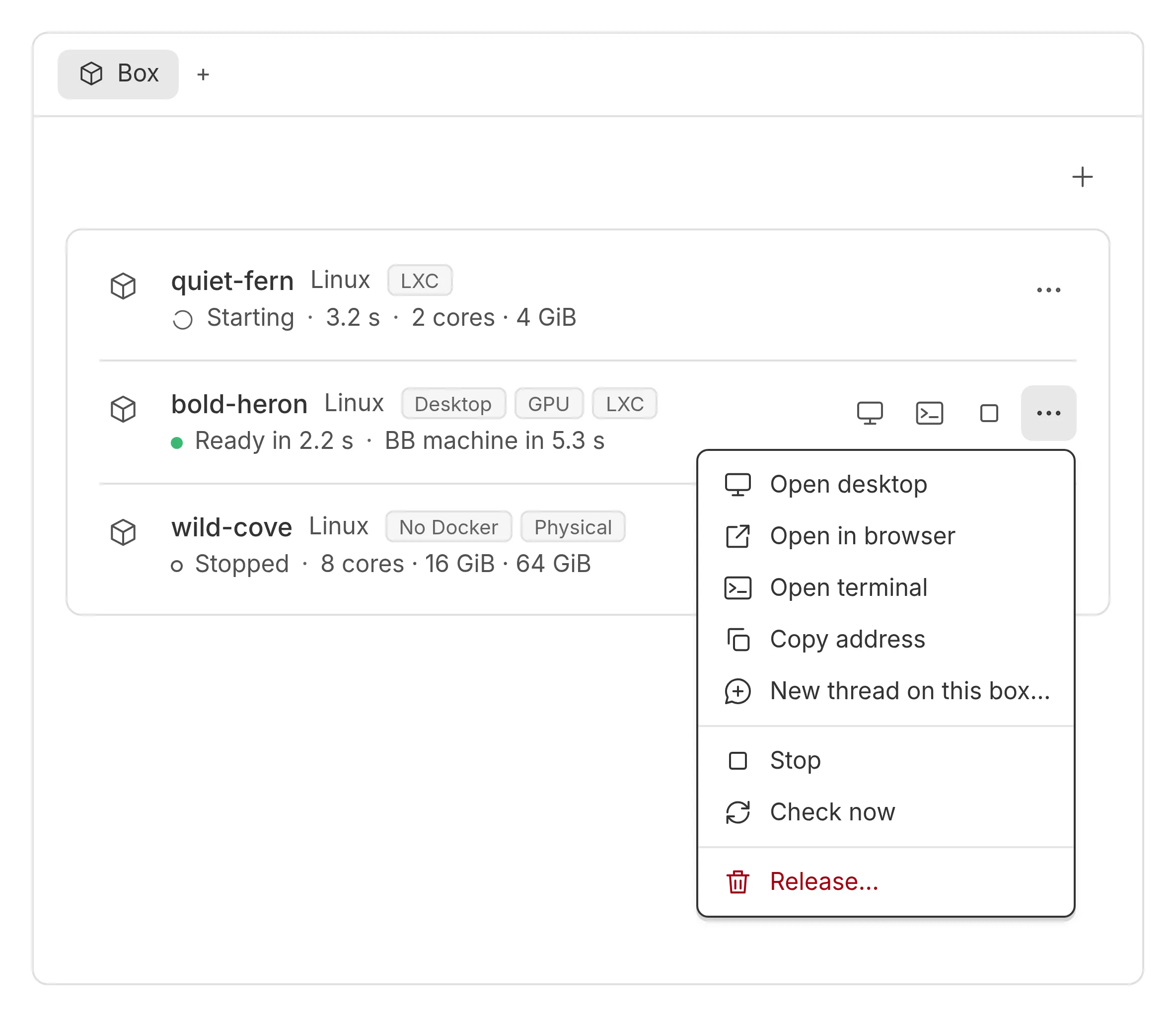
The buttons on a row open the box’s desktop, terminal or files. A stopped box also has Start, where its backend can start it. The menu at the end of the row has these and more:
- Stop: turns the box off and keeps its disk, where its backend can stop it
- Open in browser: shows the desktop on a page of its own
- Details: opens the box’s page, in the Box panel only
- Copy address: copies the box’s network address
- New thread…: starts a child thread that works on this box in its own copy of the project, and is archived with this thread
- Check now: asks the backend for the box’s state again
- Resize…: changes its cores, memory or disk: see resizing a box
- Release…: deletes the box
Releasing a box
Releasing a box deletes it and everything on its disk, so copy out anything you want to keep first. On a physical machine, releasing resets the machine and returns it to its pool. Everything in the box user’s home is deleted.
Release asks you first. If the box’s own thread is working, or another thread is working on the box’s BB machine, it asks again, for example ‘Release calm-otter anyway?’, and names the threads: ‘Fix the sign-in flow is working on calm-otter.’ Stop asks the same way, from a row’s menu, a box’s page and a notice’s Stop again, and so does a resize that needs a restart. If BB cannot say whether the box’s thread is working, they ask too, and say so. A box whose threads are all idle stops at once. One of your machines asks only when a thread is working on it.
The machine a thread runs on
A thread can run on a box rather than on your computer. That box is the first row, with a BB machine badge. Its row has no Release, Stop or Start. Instead, a line says where those are: on the Boxes page, under Machines, for one of your machines, or in the thread that holds the box.
When a box does not join BB
A box joins BB through BB’s machine access, in BB’s settings under Machines. BB’s desktop app starts with bb connect, which needs you signed in to your bb account. Until you are, no box joins BB: the row says ‘Could not join BB’ and why, and the first-run offer says so before you make a box. Sign in to your bb account in BB, or set Machine access to Manual with an address boxes can reach, such as the machine’s address on your network. BB must listen on that address too. BB on its own listens only on 127.0.0.1, which a box cannot reach: start it with npx bb-app --server-bind-host 0.0.0.0, or with the address itself in place of 0.0.0.0. That makes BB reachable by anything else on that network too. A box made before then stays as it is, so release it and make a new one.
A box can also fail to join because it cannot reach BB for a moment: its DNS lookup of BB’s address times out, or its connection to BB is cut off or times out. BB Box then tries again by itself, after 30 seconds, 2 minutes, 10 minutes and 30 minutes. Meanwhile the row says ‘Joining BB, try 2 of 5’, and the box’s page says what the last try could not do, such as ‘This box could not look up BB’s address in time’, and when the next try starts. That alone is no reason to turn the tailnet on: a lookup that timed out once usually passes. Select Join BB again on the box’s page to try again at once. A box that joins on a later try is like any other.
After 5 tries the row says ‘Could not join BB’, and BB Box keeps trying every 30 minutes. It gives up 24 hours after the first failure, and the line under the row then says so. Join BB again starts a new round of tries. What the line says about the cause depends on the other boxes on the same backend:
- if other boxes there joined BB, BB’s setup is fine, and the fault is in this box’s network or DNS. Release it and make another, or look at its network
- if no box there can reach BB, BB’s address is one its boxes cannot reach: turn the tailnet on in BB Box’s settings (see the tailnet), or give BB a URL its boxes can reach
When no box on a backend can reach BB and BB refuses their connections or they have no route to it, BB Box says so after the first try, as that is a setup problem. Once it is fixed, select Join BB again on each box’s page, or wait for the next try. bb box doctor lists each box that did not join at its first try, under Joining BB.
A box that could not join before BB Box tried such failures again, as one made before this version, gets the same tries: the sweep plans them, starting 30 seconds after it finds the box. It does so only for boxes BB Box would add to BB: your machines, and threads’ boxes while enrolment is on in its settings.
To add a ready box to BB again yourself, select Join BB again on its page, where it says it could not join BB or has not joined yet, or run bb box enrol <box>, with --machine for one of your machines. An agent can use box_enrol. Each first asks BB about the machine the box’s record names. If BB still has that machine, BB Box records the box as a BB machine and changes nothing else. Otherwise it runs BB’s installer in the box as its user, as when the box was made. It does not restart, stop or resize the box. It stops only the BB daemon of a machine that BB no longer has. On a box that is a BB machine already, they say so and change nothing. A box that is not ready is refused: start it first.
Boxes still work without joining BB, but the thread’s commands and terminals cannot use them, and they do not get the thread’s Git credentials and variables.
When something goes wrong
If BB Box cannot do what you asked, it says why in a red line under the plus. For example, it cannot stop a box whose host does not answer. The line stays until you select Dismiss or do something else.
BB Box keeps a log of each box: who started, stopped, resized and released it, and when, whether you did it here, an agent did with its box tools, a bb box command did, BB Box did itself, as for a spare, or something outside BB Box did, as when a container is stopped on its host. When one of these fails, the log keeps the backend’s words and what BB Box then saw of the box, such as that it is still running. A release that fails keeps the box until a release is confirmed. The log keeps a box’s last 7 days, and a released box for 24 hours.
When a box stops answering, BB Box checks it again by itself after 1 minute, after 5, then every 15 minutes, until it answers. If you remove a backend from BB Box’s settings while it still has boxes, bb box forget <box> removes BB Box’s record of one of them. It deletes nothing: if the box still runs on that backend, it keeps running.
The Boxes page
Select Boxes in BB’s sidebar. The page has 3 tabs, each with a count:
- Machines lists your machines.
- Threads lists every thread’s boxes, in a card for each thread. The card’s title is the thread’s title. Select it, or the arrow beside it, to open the thread. While the thread works, a spinner shows beside the arrow; point at it to read ‘Working’.
- Snapshots lists every box’s snapshots, in a card for each box, the boxes that are gone included: see the Snapshots tab.
The page opens on the tab you chose last. The first time, it opens on Machines if you have any.
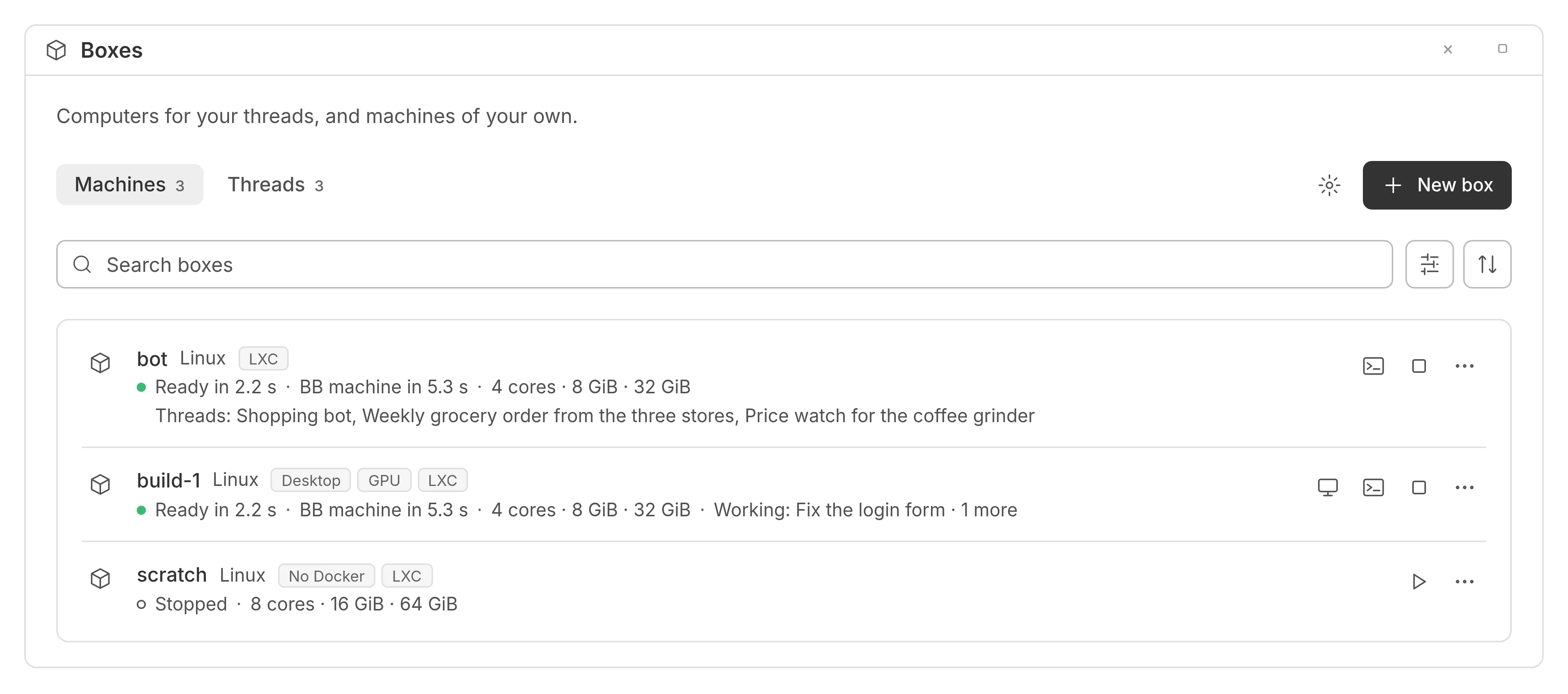
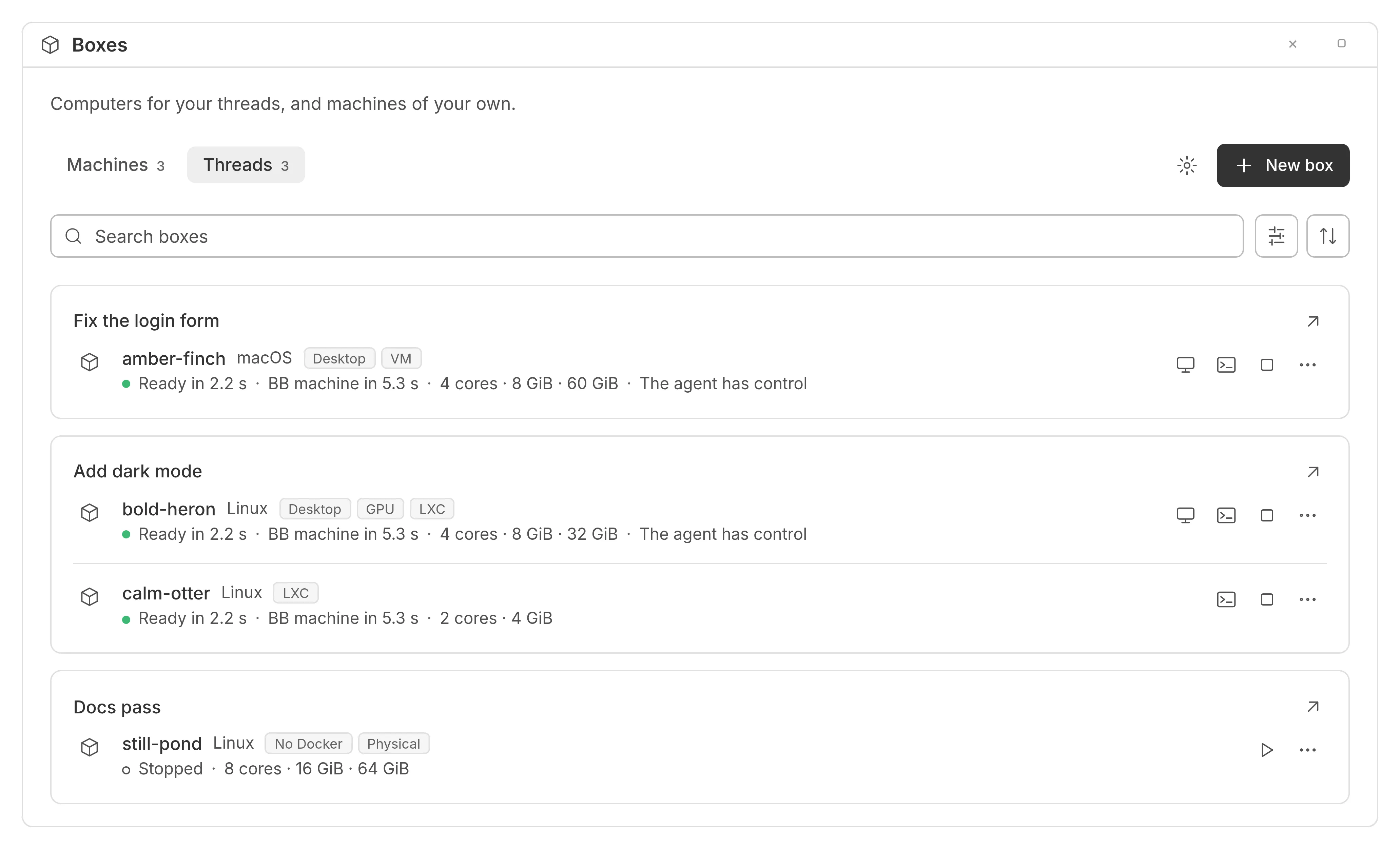
Under the tabs, a search field finds boxes by name, kind, provider, device, such as iPhone 18 Pro, or thread title. Beside it:
- Filters keeps the boxes whose system, tags, provider and state you tick. A box with a device has its device’s system, iOS or Android, so it is not under macOS or Linux. Tags say what a box is, such as Desktop, GPU or Container. Each filter offers only what the tab lists.
- Sort orders the boxes by name, by when they were made, or by when they were last active. Last active is the latest of when the box’s thread last worked, or for one of your machines any thread on it, and when the box was last started. It puts the boxes used most recently first, so boxes nobody has used for days come last. Select the same choice again to reverse the order.
On Threads, each thread’s card comes where its first box falls in that order.
A thread’s box has the same row and menu as in the Box panel. It asks the same questions before it releases or stops a box. New thread… is only in the Box panel.
Select a row or its name to open the box’s page. Hold Command or Ctrl as you select its name to open the page in a new tab. With the keyboard, Tab reaches each row’s name, then its buttons; Enter on a name opens the page.
A desktop or terminal you open from a row shows on the page, with a back arrow to the list. A row whose release did not finish says ‘Release did not finish’, and its menu has Release again….
When you come back to the list from a box’s page, a desktop or a terminal, by the page’s Boxes link, a back arrow or the browser’s Back, the list is as you left it: the same tab, search, filters, sort and scroll, with the keyboard’s focus on the name of the box you opened. If that box has gone, the focus is on the row now in its place. The list keeps these until you close the browser tab. The search field and the tabs stay at the top while the rows scroll.
The gear at the top right opens BB Box’s settings. New box beside it adds one of your machines, since a box made on this page has no thread. To start a thread on a box of its own, use BB’s new-thread screen: see starting a thread on a new box.
What a row says on the Boxes page
On the Boxes page, the line under a box’s name says how the box is now: its state, what needs your attention, how long, then its cores and memory. For example:
| What it says | What it means |
|---|---|
| Ready · up 2 h · 4 cores · 8 GiB memory | the box has been running for 2 hours since it last started |
| Ready · Busy: CPU 96% for 9 min · up 46 min | the box has been busy for at least 5 minutes |
| Ready · You have control · up 2 h | you hold its desktop’s keyboard and mouse |
| Ready · Stop failed · up 2 h | the last stop did not work |
| Last seen ready · Its backend is not in settings · 2 d ago | BB Box cannot check the box: see when something goes wrong |
| Last seen ready · pve-3 does not answer · 12 min ago | the box’s host does not answer |
| Ready · Joining BB, try 3 of 5 · up 3 min | a try to join BB failed, and BB Box tries again |
| Ready · Could not join BB · up 12 s | the box works, but it is not a BB machine |
| Starting · 7 s | the box is being made or started |
| Stopped · 3 h ago · 4 cores · 8 GiB memory | the box is off and keeps its disk |
| Failed · 52 min ago | the box could not start |
What needs your attention comes in this order: an action that failed, a backend not in settings, a host that does not answer, busy, your control of its desktop, and a box that could not join BB. It is in amber or red, in words. When there is more to say, such as why a box could not join BB or the backend’s own error, a warning mark follows the words. Point at the line, or move the keyboard’s focus to the box’s name, to read all of it; a screen reader reads it with the box’s name. The box’s page says it in full, with what to do.
A box is busy when box history saw it high for 5 whole minutes in a row, for one reason, by the Monitor’s own rules, and its newest reading is under 2 minutes old. The words give the reason: ‘Busy: CPU 96% for 9 min’, ‘Busy: GPU 98% for 12 min’ for an NVIDIA GPU at 85% or more (a card it shares with other boxes never makes it busy, as BB Box cannot tell its own share of the card’s use), ‘Busy: memory 93% for 6 min’, ‘Busy: load 7.9 on 4 cores for 6 min’ for a box with its own kernel, ‘Busy: 95% of its share for 7 min’ for a Mac shared with other boxes, which is judged by its own processes only, or ‘Disk 97% full’. With box history or the Monitor off, no row and no page says busy. The box’s page says it in its header too, as a link to its processes.
The line may take 2 lines on a narrow screen. What needs your attention stays; how long and the size go first. The list asks again every 15 seconds while it is shown, so a thread that finishes says ‘Idle’ soon after.
A box’s page
Every box, and every machine of yours, has a page of its own on the Boxes page, at /plugins/bb-box/desktop/box/ and the box’s ID. Its address works in a new browser tab, after a reload and as a link you send. To open it:
- on the Boxes page, select a box’s row or its name
- in the Box panel, select Details in a box’s menu
- in the Monitor’s machine status, select Open beside a box’s name, then Open details
- in a desktop, device or terminal on the Boxes page, select the box’s name in its bar
The page shows, from the top:
- the box’s name, system, device and badges, its state in words, such as ‘Ready · up 2 h 14 min’ or ‘Stopped · 3 h 5 min ago, Today 15:53, by you’, its ID and Copy link, which copy with a click, and the thread it is for, with whether that thread is working now
- its views, Desktop, Simulator or Emulator and Terminal, then Start or Stop and the menu. A view that cannot open now is greyed out and says why, such as ‘calm-otter is stopped’. Hold Command or Ctrl as you select a view to open it in a new tab
- notices, when there are any: a stop, start, resize or release that failed, with what BB Box saw of the box after it, a backend that is no longer in BB Box’s settings, a box that does not answer, a box that did not start, a stop BB Box did not ask for, a device that did not boot, and a box that could not join BB
- while the box starts, its steps so far and what it waits on
- Activity: its CPU, memory, disk and network now and over the last few minutes, then its top processes
- where its backend takes snapshots, its Snapshots card: take, restore, fork and keep them. Take snapshot… is also in the menu beside Resize…
- its kind, size, where it runs, address, system, whether it is a BB machine, when it was made, and who has control of its desktop or device
- the other threads on its BB machine, with New thread…
- how it started: how long each step took, and when it last started, and who started it
Who stopped or started a box comes from its log, so the page leaves it out where the log does not say.
Activity
While a box runs and the page is shown, Activity reads it through the Monitor, every 5 seconds unless you set the Monitor’s interval otherwise. The Monitor’s machine status and the page share one reading. At the top right it says when it last read the box.
- Four tiles give its CPU, with the load or, in a container, the pressure; its memory, marked Normal, High or Critical; its free disk; and its network down and up. A box with GPU readings has a tile for each GPU: its use, its memory used of its total, and its temperature or power. A box that shares its NVIDIA card marks its tile ‘shared card’, gives its use as ‘% whole card’, and its own memory of the card’s, such as ‘This box: 612 MiB of 14.1 GiB’. Point at the mark, or move the keyboard’s focus to it, for why. A card that a reading missed keeps its tile, which says it was not read.
- The page is laid out from the start: until the first reading, the tiles, the charts and the processes are placeholders where their numbers will be, so nothing moves when it arrives. A box with a GPU kind, or one whose GPUs the page has read before, has its GPU tiles laid out from the start too. A box that is not read keeps the same layout and says why in it.
- A chart shows its CPU and memory, as % used, over the last 6 minutes. A box with NVIDIA GPUs adds each GPU’s use and, hidden until you select it, its memory. Select a line’s name above the chart to hide or show it. A second chart shows its download and upload.
- Point at a chart to read its numbers at that time. With the keyboard, Tab to a chart, then Left and Right move from reading to reading, Page Up and Page Down 10 at a time, Home and End to the first and last, and Escape clears it. A screen reader hears each reading, and a summary of the chart, such as ‘CPU averaged 31%, highest 78% at 4:10:05 PM; memory last 58%’, with any gaps.
- Top processes lists its 6 busiest processes, by name, PID, CPU and memory. CPU is per core, so a build on four cores shows 400%; 100% or more is in amber. On a box with NVIDIA GPUs, a GPU column gives the card memory each process uses, and a process using a GPU is always listed, even when others use more CPU. BB Box reads names and PIDs only, never a process’s arguments or environment.
A shared iOS or macOS box is a macOS user on a Mac shared with other boxes. Its tiles are its own: This slot’s CPU and This slot’s memory are its own processes’, against its share of the Mac, which is the Mac’s cores and memory divided by the slots the Mac can hold. On a Mac of 12 cores that holds 3 slots, a slot using 2 cores is at 50% of its share. Then come the Mac’s own numbers for all slots, its video encoder and its disk. The Mac’s numbers never make the slot’s health a warning; only its own do. Its chart has a third line, the Mac’s CPU, hidden until you select it. A slot’s CPU counts the processes its own user ran, those that have ended included, as long as a process of its user waited for them.
When the box is stopped, or not running, Activity says it is not read, and when it stopped. While it stops, it keeps reading until the stop is confirmed. If a reading fails after one worked, it keeps the last numbers and says which time they are from. A box that BB Box cannot read, such as a Windows box that is not a BB machine, says why. When the Monitor is off, BB Box reads nothing, and Activity has a link to the Monitor’s settings to turn it on.
Over 1 hour, 24 hours and 7 days
Above the chart, choose Live, 1 h, 24 h or 7 d. With focus on the one chosen, the arrow keys choose another. A box being read opens on Live; a stopped box, or one BB Box cannot read now, opens on 24 h, and Live says why it cannot be chosen.
These ranges come from box history: BB Box reads every running box once a minute, lightly, and keeps what it read.
- 1 h has a point for each minute, 24 h for each 10 minutes, and 7 d for each hour. Each point is the box’s mean over that time, not a sample of it.
- Over 24 h and 7 d, a light band above CPU’s line is each step’s busiest minute, so a short spike is not averaged away. Reading a point names the busiest minute where it is 5 points or more above the mean.
- Disk is a third line, hidden until you select it, as it moves slowly. Each GPU’s use is a line, with its busiest minute over 24 h and 7 d, and its memory a line hidden until you select it. A GPU’s point is the mean of its readings once a minute, each the card’s use at that moment. A card that was shared is the whole card’s, and the chart’s description says so. A shared slot’s third line is the Mac’s CPU instead, and it has no network chart, as the Mac’s network is every slot’s. Over 24 h and 7 d, a slot says that its work shorter than a minute may not show, and that Live shows it.
- A gap says why: Not made yet, Starting, Stopped, Not read (the Monitor or box history was off) or No reading (a reading failed or was skipped). Only a stop BB Box confirmed shows as Stopped. A gap shows at its own times, even within a step that has a value. A step of 24 h or 7 d that missed a minute or more of readings says ‘partly read’, and for how long it was read.
- Each chart’s description says its numbers and its gaps, such as ‘Over the last 24 hours, by 10 minutes: CPU averaged 31%, busiest minute 78% between today at 16:10 and 16:20; memory last 58%. Stopped from today at 15:53.’ Its averages count each step by the time it was read.
- If BB Box cannot read a box’s history again, the charts stay as they were and say when they were read, and a screen reader hears it.
- On the night the clocks go back, a time the clock shows twice says its time zone, such as 1:00 AM EDT and 1:00 AM EST.
With box history off, Live still reads while the page is open, and 1 h, 24 h and 7 d keep what was read before, under ‘Box history is off’. With the Monitor off, what was read before stays on show too. See box history.
When a box’s backend is no longer in BB Box’s settings, or does not answer, its Stop, Start, Resize and New thread are greyed out, and a line beside them says why. A box that does not answer itself can still be stopped, started, resized and released, as those go through its backend: only its views and New thread are greyed out. It says when BB Box checks it again; select Check now to check at once. Once it is stopped, or answers, it no longer says it does not answer. For a box whose backend was removed, Forget… removes BB Box’s record of it and deletes nothing: if it still runs on that backend, it keeps running.
A release that did not finish says so, with the backend’s words, and Release again…. For 24 hours after a box is released or forgotten, its page says which, when and by whom. After that, or for a link that is wrong, the page says ‘This box is not here’.
The back arrow on a desktop, device or terminal goes back to where you opened it from: the list, the box’s page, or BB Box’s settings, and says which. A link with no such place goes back to the box’s page.
A view’s bar
A desktop, device or terminal on the Boxes page can switch to the box’s other views, as each can open now. Its bar has a button for each of the box’s other screens: Desktop, Simulator or Emulator. On a desktop or device, select Open terminal in the toolbar’s menu, beside Open thread. Switching replaces the view rather than adding a step, so its back arrow, and your browser’s Back, still go to where you first opened it from.
A desktop’s or device’s bar can show the box’s CPU and memory now, from the same reading as its page, before Take control. They are hidden until you select Show CPU and memory in the toolbar’s menu. It is ticked while they show, and your choice lasts in that browser, for every box, until you select it again. A terminal’s bar shows them in a window wider than 640 px. A shared iOS or macOS box shows its own, against its share. Select them to open the box’s page. If a reading fails after one worked, the bar keeps the last numbers and says which time they are from. They do not show while the Monitor is off, or while the box is not running.
Your machines
A machine is a box of your own, kept as a BB machine. It belongs to no thread. It shows in BB’s machine list and in the new-thread picker, so you can start threads on it, and it stays until you remove it.
You can add a machine from New box on the Boxes page, or from Add machine in Settings, BB Box, Machines. The form is the same as for a new box, with a name at the end. The name is optional: leave it empty and BB Box picks one. A name uses lowercase letters, digits and hyphens, starts with a letter, does not end with a hyphen, and is at most 32 characters.
A machine’s row shows the threads on it: up to three, those working first, with a spinner, then those most recently active. Select one to open it. +2 more, or however many there are, lists them all, with a search box when the list is long. You can stop, start, resize and remove it from the Boxes page or from settings. Removing a machine deletes it, as releasing a box does. If a thread is working on the machine, Remove and Stop ask again before they go on.
Remove a Windows machine here, not from BB’s own machine list. Removing it there takes it out of BB, but leaves the Windows box running.