

Settings
BB Box’s settings page is where you see whether everything works, set up the places boxes come from, and choose which kinds of box are on offer and how big they are.
To open it, select the gear on the Boxes page, or open BB Box in BB’s settings. The Monitor’s settings are on it, under Monitor.
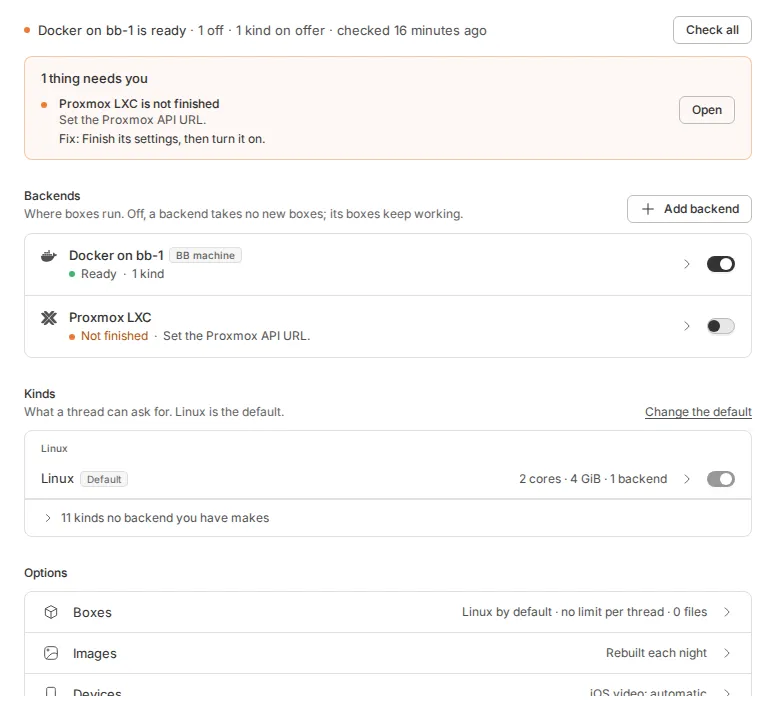
The page is an overview. Each backend, each kind and each group of options has a page one step in: select its row to open it. Each page has its own address, so the browser’s back and forward buttons, reload and links all work. At the top of each page, BB Box settings goes back to the overview.
A switch saves at once, and says Saved once BB Box has saved it. If BB Box refuses the change, or someone else’s changes keep getting in first, the switch goes back and says why under its row. A form, such as a backend’s settings, saves when you select Save.
When no backend is on yet, the page starts with the same offer as the Box panel: where one of your BB machines has Docker, Use Docker on this machine turns it on and builds the Linux image. See the Box panel.
Status
The first line says how many backends are on and ready, how many are off, how many kinds are on offer, and how long ago the backends were checked. A backend is ready only if it passed a check within the hour; an older pass reads ‘passed their last check’. Check all checks every backend that is on.
When something needs you, a box under the line lists each thing with how to fix it, and Open goes to its page. It lists backends that fail their checks or need settings, warm boxes short for want of room, the default kind turned off, and kinds whose backends cannot make them now.
Backends
A backend is a place boxes come from, such as Proxmox, a pool of your own machines, Docker or Tart on a Mac. Each backend you have is a row. Its switch turns it on or off. A backend that is off makes no new boxes, but boxes it already made keep working.
The row says how the backend is:
| What it says | What it means |
|---|---|
| Off | it is set up but turned off |
| Not finished | it was saved off with a setting missing or wrong, and the row names it |
| Not checked yet | it is on, and has no check on record |
| Not checked since it changed | its settings changed after its last check |
| Last check passed | it passed its last check, over an hour ago, and the row says when |
| Ready | it passed a check within the hour |
| Needs attention | a check gave a warning |
| Not working | a check failed, or a setting is wrong |
Docker on one of your BB machines shows as a Docker row with a BB machine chip.
A backend’s page
A backend’s page has its switch, its health with its last check, and its settings. Each backend needs different settings, which its setup guide explains:
- Proxmox LXC
- Proxmox QEMU
- SSH host pool
- Docker, and Docker in WSL on a Windows PC
- microsandbox
- Tart
- Hetzner Cloud, for Docker hosts rented by the hour
- Namespace, for Macs and Linux machines rented by the minute
- boat.dev, for Linux VMs rented by the second
Every setting is also in the configuration reference.
A secret, such as a password or an API token, never shows its value. Its field says whether it is set, and you can replace or clear it.
A backend with NVIDIA cards, Proxmox LXC or Docker, has a GPUs section: boxes per card, whole cards, and the GPU memory a new box needs, then the list of its cards and the boxes on each. Whole cards is a switch, and saves at once; the rest waits for Save. These set limits and defaults only, and a lower limit stops nothing that runs. See GPU boxes.
A backend with several hosts lists them under Hosts. A new box goes to the first host in the list with room. Each host has its own switch.
A backend with standard images lists them under Images, each with its state and age, and Try again on one whose last rebuild failed. Open the Images page goes to all of them.
Select Check to run the backend’s health checks with the settings in the form, without saving them. Each check says what is wrong and how to fix it.
Select Save. Changes reach new boxes; boxes already made keep theirs.
Adding a backend
Select Add backend. The page lists every kind of backend. Select one to set it up, then Save and turn on. If the backend cannot work with these settings, BB Box says what to fix and keeps it off. Save keeps it off, so you can finish later. Once it is saved, its own page opens.
The same page lists Docker on your BB machines first: your own BB machines that run Docker, such as a PC with WSL. BB Box can make boxes there. A box on such a machine is a container with full access to the machine, so BB Box uses none of these machines until you select Add. Then the machine’s Docker is a backend like the others, with a BB machine chip: its row and page say whether it hosts boxes, its image build, and whether it is offline in BB. A machine whose Docker does not work says Cannot host boxes, why, and how to fix it when BB Box knows, such as the command that adds BB’s user to the docker group; fix it, then select Check again. One line names the machines with no Docker. Turning the backend off keeps it, as for any backend; Remove backend… in its menu removes it. A server you rent from a cloud provider can be one of these machines: see a cloud server as a Docker host.
Kinds
A kind is a type of box, such as a Linux desktop. A kind is offered when it is on and a backend that is on makes it.
Each kind is a row with a switch, in one list: Linux kinds first, then macOS and iOS, then Windows and Android. The row gives the kind’s default size, how many backends make it, and how many warm and spare boxes it keeps. Kinds that are off, and kinds no backend you have makes, are folded into one line at the end. A kind you turn off stays where it is, dimmed, until you leave the settings.
The default kind’s switch stays on. To turn it off, choose another default first: Choose another default on its page, or Change the default above the list, opens the Default kind menu.
Select a kind’s row to open its page. Make default makes it the default at once. The rest is one form, saved with Save:
- Sizes: the cores, memory and disk of Small, Medium and Large, and the Largest a custom size can ask for. An empty disk keeps the size the image comes with.
- Default: the size a box gets when no one says.
- Where it runs: each backend that makes the kind, in the order a new box tries them, with whether it makes it now. Where a backend keeps warm boxes of the kind, Warm sets how many wait ready there, so a new box is ready at once. Other backends say why they keep none: most make each box when a thread asks, and shared iOS hosts keep slots ready instead.
- Spares to keep: ready boxes that are already BB machines and belong to no thread, so a thread can have one at once. See spare boxes.
The Linux and Linux desktop kinds, where a backend has cards, have GPU when not asked for: None, Shared or Whole card. It is a menu that saves at once, apart from the form. See GPU boxes.
The kinds and their shipped sizes are in kinds and sizes.
Options
Boxes
- Default kind: the kind a thread gets when it does not say.
- Boxes per thread: the most boxes a thread can have at once. 0 means no limit. It saves when you leave the field.
- Boxes join BB as machines: when on, each box joins BB as a machine, so the thread’s commands and terminals can use it, with the thread’s access.
- Linux desktops as video: a Linux desktop drawn by the CPU, X11 or Wayland, shows as video, with Show as VNC under Display in the viewer’s menu to go back. See video. On unless you turn it off.
- Files for every box: files you choose, put into the home folder of every Linux and macOS box. See files for every box.
Images
- Rebuild each night: at 03:00 on BB’s server, BB Box rebuilds the standard images that are due, so new boxes have current tools and updates. After a BB update, it also refreshes the Linux images with BB’s old app within the hour. Setting up Docker from the Box panel, or with
bb box setup docker, turns it on; otherwise it is off unless you turn it on. - Standard images: an image that needs you has its own row: one that is due, rebuilding or next in a rebuild, waiting for room, or whose last rebuild failed, with Try again. The rest are one row, such as “18 images up to date”; select it to list them, and again to fold them.
- Rebuild now: lists the images that are due and why, and starts the same rebuild at once, one image at a time, showing how far each is. It does not start while a rebuild goes on, and says so. See images.
- Projects’ images: the images projects set with
bb box image set.
Snapshots
How many snapshots each box holds, how long Keep keeps one, how full a host’s storage may get, a ceiling on paid snapshots for each backend that charges, whether agents may restore their own boxes and memory snapshots, and whether a picture of the screen is kept with each snapshot. The page also says what each backend’s snapshots hold and cost. See snapshots’ settings.
Devices
Each setting here acts at once.
- iOS video encoding: Automatic uses a Mac’s hardware encoder, and software where it has none or its encoder fails. Hardware only and Software only are for testing one of them. A box takes a change when its device server is next delivered.
- Share each Mac’s encoder fairly: the person in control of a device streams at full size first; recordings, other viewers and agents share what is left, at a lower size. Off, every shared iOS stream is capped at two thirds.
- Set on other pages: each backend’s shared iOS hosts, and each device kind’s spares. Spares of device boxes are off unless you set a number on the kind’s page, as each waits with its device booted and its memory saved to disk. See spares.
- Test device: Linux and macOS boxes offer a test card in place of a phone, to check the device path without a simulator or emulator.
Network
Network is for machines BB Box rents and makes, such as Namespace Macs, when BB’s server is on a Tailscale tailnet. Each such machine must join the tailnet to reach BB.
- No: BB is reached without one: machines join no tailnet. Choose this when BB is reached through bb connect or a public address.
- Yes, with a Tailscale OAuth client: BB Box makes a single-use, pre-approved key for each machine with the OAuth client, and the machine leaves the tailnet when its box goes. Give the client’s ID and secret, and the tags machines join with. Leave Tags empty for
tag:bb-box. The client needs theauth_keysscope with those tags, anddevices:coreso BB Box can remove machines that went without leaving.
The client’s ID and secret are kept secret: the page shows only whether each is set, with Set or Replace. The choice, the tags and the client are saved together, with Save or Enter. If BB Box refuses the save, for example because the secret is missing, nothing is saved: your changes stay, and the reason is under the field it names. Choosing No and saving deletes the saved client. See joining cloud machines to your tailnet for making the client.
Monitor
The Monitor’s machine status in BB’s sidebar, how often it refreshes, background monitoring, pressure notifications, and whether BB Box keeps each box’s history. If box history’s file ever fills, a line here says so. Machine status also has its switch on the overview’s row. When you turn it on or off, the sidebar changes when BB next loads: select Reload BB now.
Configuration
The configuration’s revision, and the bb box config commands that show and change it from a terminal.
Your machines
Your machines are on the Boxes page, under Machines. This row opens that tab. See your machines.
When someone else saves first
If someone saves the settings while you are changing a form, BB Box reloads the page and asks you to make your change again. The form keeps what you typed. A switch tries again by itself, up to 3 times.
From the command line
You can see and change the same settings from a terminal. bb box backend add, bb box backend set and bb box backend remove change a backend, bb box kind set a kind, and bb box option set the options under Options. Each makes one checked save, as the page does: it is refused for the same reasons, and it says what it changed and how the backend’s checks went. bb box config show prints the whole configuration, and bb box config apply saves a whole file. bb box doctor runs every health check. See the command-line reference and health checks.
To have an agent set bb-box up for you, ask it in a thread, such as “set up Docker boxes here”. bb-box gives agents the bb-box-setup skill, which says what to ask you, which scripts to run where, how to take a secret from you without seeing it, and how to prove it worked with a first box.